


Instagram Live Audio Settings in OBS: A Practical Setup Guide
A practical audio checklist for Instagram Live with OBS Studio: microphone gain, meters, filters, monitoring, RTMP routing and troubleshooting.
Read the guide

Feature List
Super Easy to use with vMix, Wirecast, XSplit, OBS Studio and etc..
Schedule posts in your Feed, Story, IGTV and Carroussel.
Simultaneous Live on Multiple Instagram accounts with only One Stream Key
Set your Live to automatically save to IGTV and get more followers.
See everything that happens in your Live through our control panel.
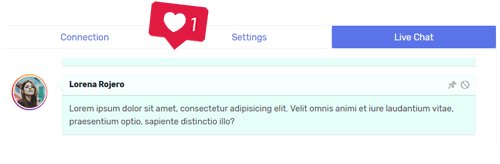
Panel to comment, Pin comments by you or your followers. Enable or disable comments.
All about your Lives! Likes, Comments and Who was in your Lives.
Analytical report of your posts in your Feed.
EASY4LIVE can Do
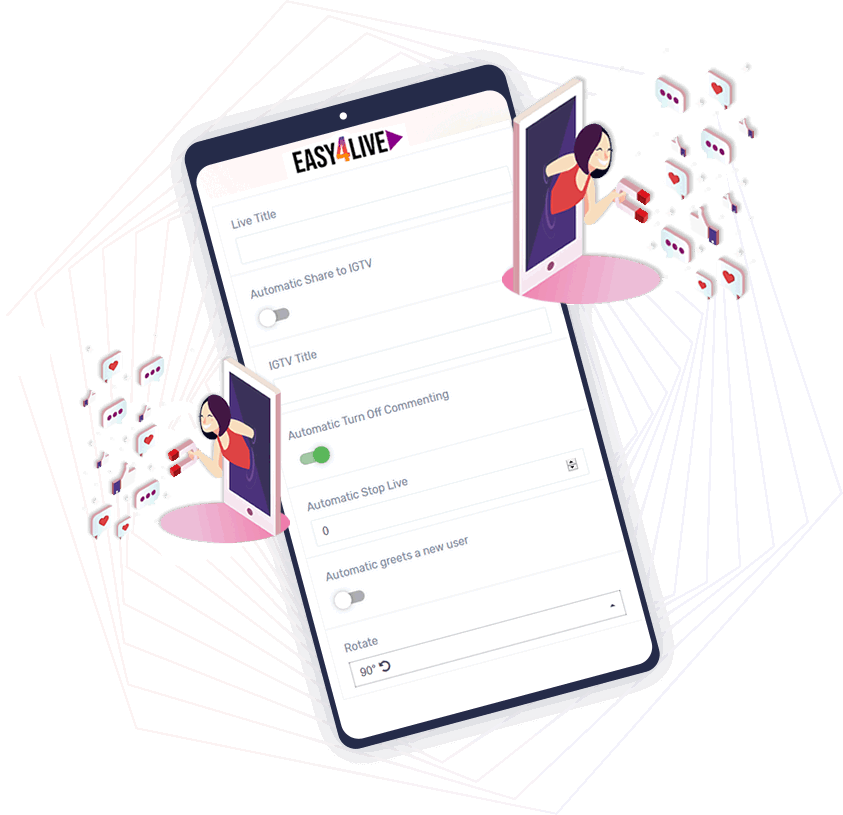
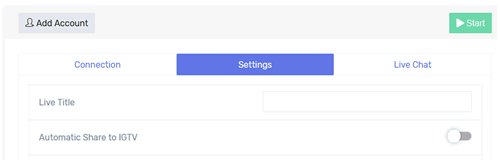
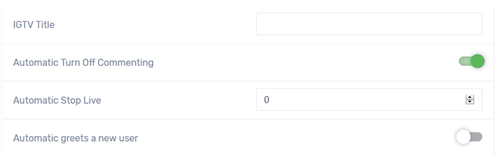
You can configure everything for your Live and so much more...
Broadcasts
Comments
Viewers
Likes
WEB PANEL CONTROL
Web Panel Control - So you have everything you need on any computer, on any operating system in just One Web Access.
Resources
Learn how to configure OBS, RTMP and professional live-streaming workflows.
A practical audio checklist for Instagram Live with OBS Studio: microphone gain, meters, filters, monitoring, RTMP routing and troubleshooting.
Read the guideA practical workflow for monitoring and managing Instagram Live comments from a desktop with Easy4Live.
Read the guideA controlled workflow for sending one production to multiple Instagram accounts while monitoring each destination.
Read the guideBuild a tested Wirecast-to-Instagram workflow with custom RTMP and a repeatable production checklist.
Read the guideA practical vMix workflow for custom RTMP, vertical production, audio checks and reliable live monitoring.
Read the guideConnect StreamYard through custom RTMP and test the complete Instagram Live workflow before publishing.
Read the guideMEMBERSHIP PLANS
BASIC
START
PRO
TURBO
MAX
ONE DAY
BASIC
START
PRO
TURBO
MAX
ONE DAY
Customer Live Streams
















FAQS
Yes. The number of connected accounts and simultaneous live sessions depends on the active Easy4Live plan. The current limits are shown in the pricing table and in your account.
Use separate encoder outputs only when your production specifically requires them. Multiple local outputs increase upload and processing requirements.
The current Easy4Live pricing page advertises live sessions of up to 240 minutes for the listed workflows. The effective duration can still depend on the active Easy4Live plan, the selected account, destination eligibility and current platform behavior. A verified badge should not be treated as the requirement for a specific duration.
Before a long event, confirm the duration shown in the dashboard, review any automatic-stop setting, test encoder and network stability, and keep a local recording when appropriate. If the planned event may exceed the displayed limit, divide it into sessions or contact support before production.
Treat the stream key like a password. Do not place it in public screenshots, recordings or shared documents. Replace it if it is exposed or no longer accepted.
The Easy4Live preview confirms that the RTMP signal reached the panel; it does not necessarily mean that the destination is already public.
If it remains unavailable, recheck account eligibility, connection status and session controls. Do not rely only on the broadcasting account's home screen as the viewer test.
The current pricing page offers monthly and annual plans, and it also displays a limited One-Day option. The exact renewal behavior, price and included limits are shown during checkout for the selected offer.
Before paying, verify whether the order is recurring or limited-duration, along with its currency, renewal date, connected-account limit, simultaneous-live limit and storage allowance. Manage billing from your current Easy4Live account; do not use old profile links from a different domain. Contact support if cancellation or renewal controls are not visible.
Yes, when a credit-card option is displayed for your selected plan and country at checkout. Card brands, countries, currencies and approval rules are controlled by the current payment provider and card issuer, so availability can change.
Select the plan and currency, then review the final price, renewal type and any applicable taxes before authorizing payment. Do not rely on an old static country list. If the card option is not displayed or a valid card is declined, contact the issuer or Easy4Live through the official contact page.
There is no single quality profile that works for every account, computer and connection. Start with the current requirements shown in the Easy4Live instructions and by the selected destination. For a vertical production, a practical test profile is H.264 video, AAC audio, 30 FPS and a 9:16 output that your system can encode reliably.
Use the OBS Auto-Configuration Wizard and test workflow as a starting point. Check the preview and encoder statistics. Blocky video can indicate insufficient bitrate, while dropped frames usually point to the network and rendering or encoding lag points to computer load. Change one setting at a time and test again.
First identify whether the problem is network-related or caused by the encoder. In OBS, increasing Dropped Frames usually indicates an unstable connection to the streaming server. Rendering lag or encoding lag points to computer, scene or encoder load.
Remember that 1,500 kbps equals 1.5 Mbps, not 1.5 MB/s. The official OBS help portal explains how dropped frames relate to connection stability.
Yes. The Easy4Live control panel is web-based and can be used from macOS, Windows or Linux with a current compatible browser. JavaScript, cookies and the network features required by the dashboard must be allowed.
Your encoder is a separate application, so confirm that OBS Studio, vMix, Wirecast or another chosen encoder supports your operating system and hardware. Test account access, preview, audio and RTMP transmission on the actual computer before the event.
Use an MP4 file with H.264 video and a valid AAC audio track for the most compatible workflow. If another format is rejected by the current upload screen, convert or export it to this profile.
Also check the maximum file size and available storage for your plan before uploading. Resolution, orientation, FPS and bitrate should match the intended post or live workflow rather than an old fixed preset. Always play the final exported file locally before importing it.
Do not ignore a new-location or unrecognized-login alert. A supported service connection can use infrastructure whose location differs from yours, but every security alert should still be verified.
Meta's security guidance recommends reviewing where you are logged in. Never approve an alert simply because it appeared while configuring a third-party workflow.
Do not publish the stream key in screenshots or support messages. The official OBS overview explains the custom server and stream-key fields.
We are going ON to get new things for you every day!